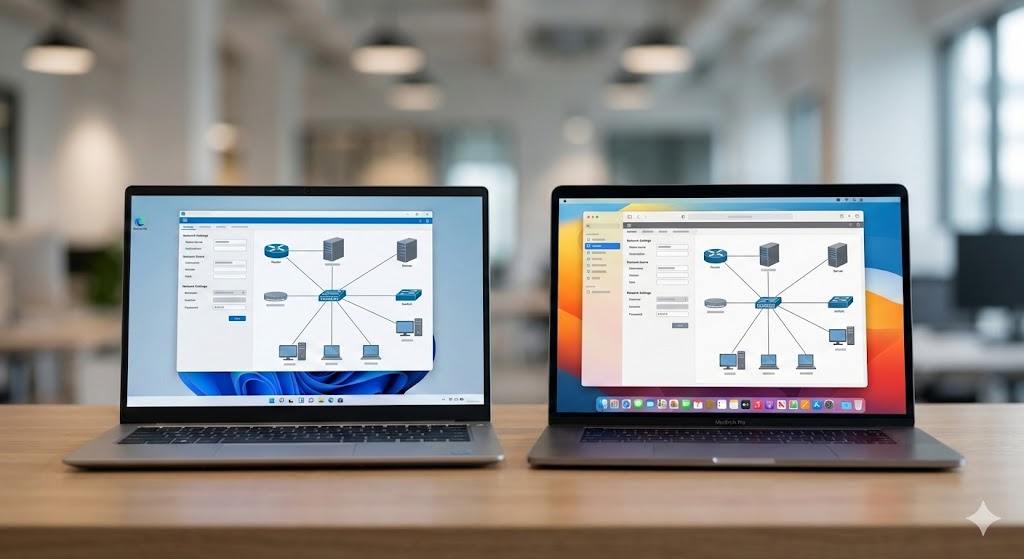
Ever felt that sudden wave of frustration when your internet stops working, and the only “fix” you find online tells you to log into your router’s settings? You type in a bunch of numbers, nothing happens, and you’re left wondering if you’re speaking a different language than your computer.
The secret key to fixing most home network issues is something called the Default Gateway. Think of it as the main exit door of your local network. If your computer wants to talk to the internet, it has to go through this door first.
Finding this address isn’t just for IT professionals; it’s a basic digital survival skill. Whether you are trying to set up a GSM gateway dealer’s hardware or just want to change your Wi-Fi password, knowing how to find your default gateway IP address on Windows and Mac is the first step.
Understanding the Role of the Gateway in Your Office
Before we dive into the “how-to,” let’s talk about the “why.” In a modern office environment—especially one using an IP based EPABX system—every single device needs to know where to send its data.
When you make a VoIP call, your voice is turned into data packets. These packets don’t just magically find their way to the person you’re calling. They travel to the router (the gateway), which then directs them to the vast world of the internet. If your gateway settings are wrong, your high-tech IP PBX system becomes nothing more than an expensive paperweight.
Locating the Gateway on Windows: The Command Prompt Method
Windows users have a few ways to find this information, but the fastest and most reliable way is through the Command Prompt. It makes you look like a pro, and it never fails.
Using the ‘ipconfig’ Command
-
Press the Windows Key + R on your keyboard.
-
Type
cmdand hit Enter. -
In the black window that appears, type
ipconfigand press Enter. -
Scroll through the text until you see “Ethernet adapter” or “Wireless LAN adapter.”
-
Look for the line that says Default Gateway. The numbers next to it (usually something like 192.168.1.1) are what you need.
This address is essential if you are trying to troubleshoot your IP phone maintenance or if you need to access the dashboard of your NEC SL2100 IP PBX system.
Finding the IP via Windows Settings (The Visual Way)
If you prefer clicking through menus rather than typing commands, Windows 10 and 11 have made it fairly simple.
Step-by-Step UI Navigation
-
Go to Settings > Network & Internet.
-
Click on Status (or Advanced network settings in Windows 11).
-
Select Hardware and connection properties.
-
Search for “Default Gateway” in the list of details.
This method is helpful when you are verifying if your VoIP configuration in Chennai matches the local network’s requirements.
How to Find Your Default Gateway IP Address on Mac
Apple makes things a bit more aesthetic, but the information is just as vital. Whether you are setting up IP audio for hotels or connecting a laptop to a business network, here is how you find it on macOS.
Using System Settings
-
Click the Apple Icon in the top-left corner and select System Settings (or System Preferences).
-
Click on Network.
-
Select your active connection (Wi-Fi or Ethernet) on the left.
-
Click the Details button (or Advanced).
-
Switch to the TCP/IP tab.
-
The IP address next to Router is your Default Gateway.
Using the Mac Terminal
For those who like the command-line interface, you can find the gateway by opening the Terminal and typing: netstat -nr | grep default
This will quickly pull up the gateway address, which is crucial when configuring IP PBX integration tasks on a Mac workstation.
Why the Default Gateway Matters for VoIP and IP PBX
In the world of business communication, the gateway is the bridge. If you are working with IP phone dealers in Chennai, they will likely ask you for your network’s gateway to ensure that your new phones can “see” the PBX server.
Connectivity and Reliability
If the gateway is misconfigured, you might experience “one-way audio” or dropped calls. This is a common issue discussed in our IP PBX maintenance guide. Ensuring your devices point to the correct gateway IP ensures that data flows both ways without interruption.
Security and Access Control
Knowing your gateway IP allows you to log into your router’s security settings. This is the frontline of securing IP telephony and preventing unauthorized access to your business lines.
Common Gateway IP Addresses to Watch Out For
Most routers use a standard set of IP addresses by default. While your specific setup might vary, especially in a professional hospitality IP audio system, here are the most common ones:
-
192.168.1.1 (Linksys, ASUS, TP-Link)
-
192.168.0.1 (D-Link, Netgear)
-
10.0.0.1 (Apple, Xfinity)
If you are using a cloud-based IP PBX, your gateway might even be a virtual address assigned by your service provider.
Troubleshooting Gateway Connection Issues
What happens if you find the IP but can’t connect to it? Or what if the “Default Gateway” field is just blank? This usually indicates a network handshake error.
Potential Fixes for a Missing Gateway
-
Restart your Router: The classic “turn it off and on again” works because it forces a new DHCP request.
-
Check DHCP Settings: Ensure your computer is set to “Obtain an IP address automatically.”
-
Flush DNS: On Windows, type
ipconfig /flushdnsin the command prompt.
These steps are often the first things we recommend in our step-by-step setting up an IP EPABX system guide.
The Evolution of Gateways in Modern Business
We’ve come a long way from traditional phone lines. Today, the future of business telephony relies entirely on robust IP networks. Understanding how to navigate your local network is no longer an “extra” skill—it’s foundational.
Whether you’re managing VoIP call center solutions in Coimbatore or a small office in Chennai, the ability to identify your gateway allows you to:
-
Access administrative panels.
-
Set up Port Forwarding for remote staff.
-
Integrate IP speakers for office-wide announcements.
Frequently Asked Questions About Gateway IPs
Is the Gateway IP the same as my Public IP?
No. Your Gateway IP is your “Internal” address—the address of your router inside your building. Your Public IP is how the rest of the world sees your network. Think of the Gateway as your room number and the Public IP as the street address of the building.
Why can’t I find my gateway on a public Wi-Fi?
Some public networks use “Client Isolation” for security. This prevents you from seeing the gateway or other devices on the network to stop hacking attempts.
Can I change my Default Gateway address?
Yes, but only through the router’s settings. Changing it on your computer manually without changing it on the router will result in a loss of internet connection.
Does an IP PBX have its own gateway?
Usually, the IP PBX system acts as a client on your network and points to your router as its gateway. However, in complex setups, the PBX might act as a gateway for the IP phones.
Conclusion: Taking Control of Your Network
Understanding how to find your default gateway IP address on Windows and Mac is like having the map to your own house. It removes the mystery of why your internet or IP phone system isn’t working and gives you the power to fix things yourself.
From small business VoIP setups to large-scale IP EPABX systems in Chennai, the gateway is the heartbeat of communication. Next time you run into a connection glitch, you’ll know exactly where to look.