Integrating IP PBX with Zoho: A Step-by-Step Guide
Picture this. A customer calls your sales line. Your phone rings, but you have no idea who’s on the other end until you pick up. You fumble for their name, scroll through old emails, and by the time you’ve pieced together their history, they’ve already hung up frustrated — probably wondering why they bothered calling at all.
This scene plays out in offices across Coimbatore and Chennai every single day. The fix isn’t hiring more staff or buying a fancier phone. It’s connecting the phone system you already have to the CRM you already use. If your business runs on Zoho, integrating your IP PBX with it turns every call into an opportunity instead of a guessing game.
Why Zoho and IP PBX Belong Together
Zoho CRM already holds everything your team needs — lead history, deal stage, past conversations, support tickets. Your IP PBX, meanwhile, is the door through which most customer conversations still happen, especially in India where phone calls remain the trusted way to close a deal or resolve a complaint. Keeping these two systems separate means your team is working with half the picture on every single call.
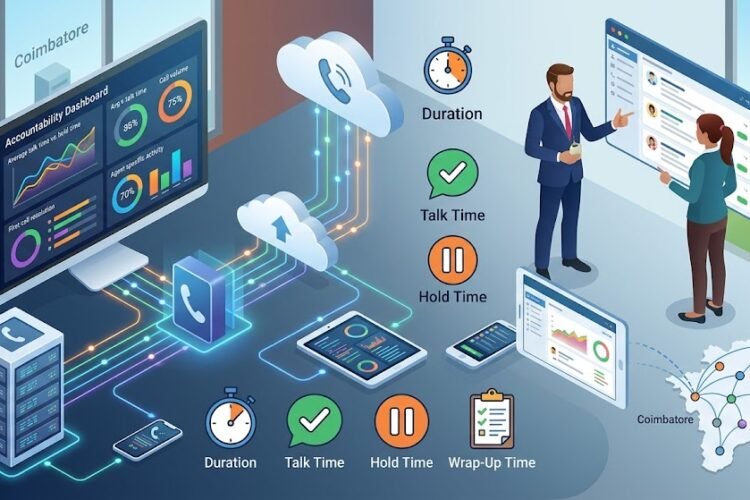
When you connect your IP PBX with your CRM, the phone stops being just a phone. It becomes a data source. Every call logs itself, every customer gets recognized instantly, and every manager gets visibility into what’s actually happening on the sales floor without asking anyone for a status update.
The Real Cost of Keeping Them Apart
Businesses that skip this integration usually don’t realize what it’s costing them until they compare notes with a competitor who’s already done it. Manual dialing wastes minutes every hour. Agents forget to log calls, or log them hours later with half the details missing. Managers can’t tell which leads are being followed up and which are quietly going cold. We’ve written before about how manual call entry is quietly hurting sales performance, and the pattern is the same everywhere: the damage is invisible until you measure it.
A Quick Reality Check
Ask your sales manager this one question: “How many follow-up calls were made yesterday, and to whom?” If the honest answer involves scrolling through someone’s personal notebook or a WhatsApp message, your phone system and CRM are not talking to each other. That’s exactly the gap this integration closes.
What Actually Happens When You Integrate
The technical explanation is straightforward, even if it sounds intimidating at first. Your IP PBX and Zoho CRM connect through an API bridge or a dedicated connector, which allows the two systems to exchange information in real time. When a call comes in or goes out, the PBX tells Zoho who’s calling, and Zoho tells your agent’s screen who that person is.
This is the same underlying idea behind what we call screen pop functionality — the moment the phone rings, the customer’s record pops up automatically, showing their name, company, last interaction, and open deals, before the agent even says hello.
Core Features You Gain
Once the systems are talking, a few things start happening automatically that used to require manual effort:
Click-to-call from within Zoho. Agents click a phone number inside a lead or contact record, and the IP PBX places the call instantly. No re-typing numbers, no misdials.
Automatic call logging. Every inbound and outbound call gets recorded against the correct contact or deal in Zoho, with duration, timestamp, and recording link attached without anyone lifting a finger.
Real-time caller identification. As mentioned above, screen pop shows agent-relevant context the instant the phone rings, whether the caller is a new lead or a five-year customer.
Call disposition tracking. Agents can tag outcomes — interested, callback requested, not reachable — directly from the call window, and that data flows straight into Zoho’s reporting.
Missed call alerts and task creation. A missed call doesn’t just vanish. It can automatically create a follow-up task in Zoho so no lead falls through the cracks.
Why This Matters for Coimbatore’s Growing Businesses
Textile exporters, service providers, and manufacturers across Coimbatore are increasingly running lean sales teams that need every advantage they can get. We’ve seen how textile exporters in the region are already cutting costs with modern IP PBX setups — pairing that same infrastructure with Zoho simply extends the value further, turning cost savings into revenue growth through better lead follow-up.
Step-by-Step: Setting Up the Integration
Here’s where the guide gets practical. The exact screens will vary slightly depending on your IP PBX brand — Matrix, Asttecs, Grandstream, or an Asterisk-based system — but the sequence of steps remains consistent.
Step One: Confirm Your PBX Supports API or SIP Trunk Connectivity
Before anything else, verify that your IP PBX platform supports outbound API calls or SIP trunking, since this is the backbone of the integration. If you’re unsure how SIP trunking works, our non-technical guide to SIP trunking breaks it down in plain language. Most modern IP PBX systems installed in the last few years already support this, but older EPABX setups may need a hardware or firmware upgrade first.
Step Two: Choose Your Integration Method
There are generally three ways to connect Zoho and your IP PBX:
Using Zoho’s built-in PhoneBridge marketplace, which lists pre-built connectors for many popular PBX vendors. This is the fastest route if your PBX brand is already listed.
Using a middleware connector or CTI (Computer Telephony Integration) adapter supplied by your PBX vendor, which bridges custom or older systems that aren’t natively listed in Zoho’s marketplace.
Building a custom API integration, typically needed for heavily customized Asterisk-based deployments or when you want very specific workflow automation beyond what off-the-shelf connectors offer.
Step Three: Configure SIP Trunk Details
If your integration path requires SIP trunk configuration, you’ll need to set up the trunk parameters correctly on the PBX side first. Our detailed walkthrough on configuring a SIP trunk on a Grandstream IP PBX is a useful reference even if you’re using a different brand, since the underlying logic of trunk registration, codec matching, and authentication stays largely the same.
Fields You’ll Typically Need to Enter
Trunk name, SIP server address, authentication username and password, outbound proxy (if applicable), and codec preferences. Get these wrong and calls simply won’t connect, so double-check them against your provider’s documentation before moving forward.
Step Four: Install and Authorize the Zoho Connector
Log into your Zoho CRM account, navigate to the Marketplace or PhoneBridge section, and search for your PBX vendor’s connector. Install it, then authorize the connection by entering your PBX server’s API credentials. This step essentially tells Zoho “trust this phone system and accept data from it.”
Step Five: Map Your Call Fields
Once authorized, you’ll be asked to map fields — deciding where call duration, recording URLs, caller ID, and disposition notes should land inside Zoho’s contact and deal records. Take time here. Poor field mapping is the single most common reason integrations feel “broken” even after installation succeeds technically.
Test With a Small Team First
Don’t roll this out to your entire sales floor on day one. Pick two or three agents, run it for a week, and watch for missed logs or mismatched contacts. Fixing mapping issues with three people is a five-minute job; fixing it after twenty agents have generated a week of messy data is a much bigger headache.
Step Six: Set Up Automation Rules
With the connection live, build automation inside Zoho — workflows that create tasks after missed calls, send follow-up email templates after specific call outcomes, or alert a manager when a high-value lead hasn’t been called back within a set time. This is where the integration stops being a convenience and starts actively driving your sales process.
Step Seven: Train Your Team and Monitor Adoption
Even the best integration fails if agents don’t use it. Spend a session showing your team exactly how click-to-call and screen pop change their daily workflow, and why logging dispositions properly makes their own follow-up easier, not harder. For a broader look at how modern phone systems affect day-to-day output, see our piece on increasing employee productivity with modern phone systems.
Measuring Whether the Integration Is Actually Working
Set a baseline before you integrate: average calls per agent per day, average follow-up time on new leads, and customer satisfaction scores from call handling. After a month of the integration running, compare. We’ve outlined a broader framework for this in measuring ROI when upgrading your IP telephony, which applies just as well to CRM integration projects since the financial upside often shows up in saved agent time rather than a single obvious line item.
Signs the Integration Is Paying Off
Faster average response time to new leads, fewer duplicate or missed follow-ups, agents spending less time on manual data entry, and — perhaps most tellingly — an improvement in how quickly support calls get resolved, something we cover in more depth in boosting customer satisfaction with faster call handling.
Common Mistakes Businesses Make During Integration
The most frequent misstep is treating this as a one-time IT project rather than an ongoing process. Integrations need occasional maintenance as Zoho updates its API or your PBX firmware changes. The second common mistake is skipping the field-mapping step and just accepting default settings, which often dumps call data into the wrong record type. The third is failing to involve sales agents in the rollout, leading to low adoption even after a technically perfect setup.
If you’re still running an on-premise legacy system and considering whether to upgrade before attempting this integration, our guide on upgrading your business phone system to VoIP PBX is a good starting point, since a modern, API-friendly IP PBX makes the entire Zoho integration process considerably smoother.
Getting Professional Help
While some businesses with in-house IT staff can manage this integration independently, many find it faster and safer to work with a local IP PBX specialist who has done Zoho integrations before and understands common vendor quirks. If your current setup is older or you’re evaluating a fresh installation altogether, our overview of complete EPABX installation for business setups can help you decide whether it’s worth upgrading the PBX itself before layering CRM integration on top.
Frequently Asked Questions
Does every IP PBX brand support Zoho integration?
Most modern IP PBX systems support it either through Zoho’s PhoneBridge marketplace or through custom API/CTI connectors. Older analog-based EPABX systems typically need an upgrade or a VoIP gateway first.
How long does a typical Zoho–IP PBX integration take to set up?
For systems already listed in Zoho’s marketplace, setup can be completed in a few hours. Custom API integrations for heavily modified systems may take a few days, including testing and field mapping.
Will this integration work with our existing SIP trunk provider?
In most cases, yes. As long as your SIP trunk is configured correctly and your PBX supports outbound API communication, the trunk provider itself rarely creates a conflict.
Can call recordings be accessed directly from Zoho after integration?
Yes, most integrations allow recording URLs to be attached to the call log inside the relevant Zoho contact or deal record, so agents and managers can review calls without switching systems.
Is this integration secure for handling customer data?
When set up correctly with authenticated API access and encrypted SIP trunking, the integration is secure. It’s worth confirming your PBX vendor supports encrypted signaling, especially if you’re handling sensitive customer information.
Do we need technical staff on our team to maintain this after setup?
Basic day-to-day use requires no technical skill. Occasional maintenance, such as updating API credentials or troubleshooting after a Zoho or PBX update, is easier with either in-house IT support or a maintenance contract with your PBX vendor.